Summary
Instructions on finding your device name and/or serial number.
Directions
Below are instructions for finding basic information about your LSA computer.
Mac Instructions
Finding the serial number
-
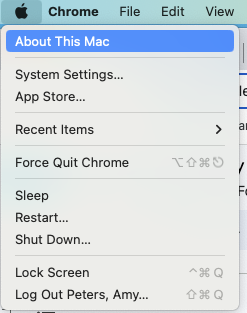
Select the Apple icon on your Mac computer. (Upper right corner of screen.)
-
Select About this Mac.
-
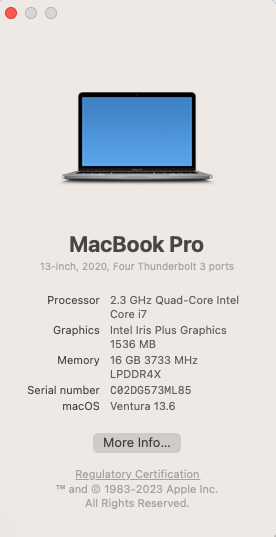
The serial number will be in the information box that appears.
Finding the system name
-
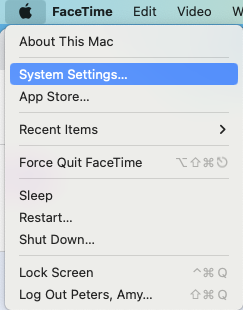
Select the Apple icon on your Mac computer. (Upper right corner of screen.)
-
Select System Settings.
-
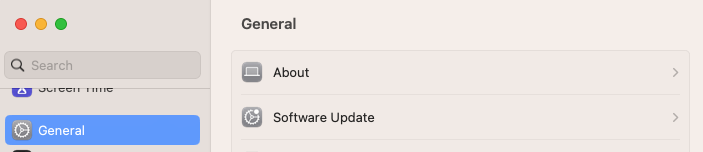
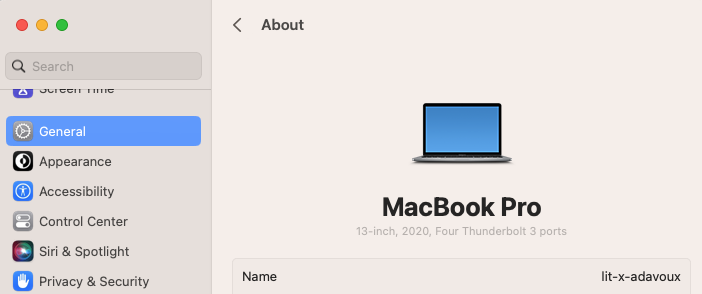
Select General.
-
Select About.
-
The name will appear under the computer icon.
Windows Instructions
-
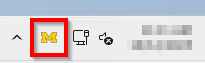
In the lower right corner of your screen in the 'Block M App' (WLMS Notify) is accessed from the system tray found in the Windows taskbar, as seen below:
-
If you don't see it, the system tray can hide lesser-used icons. You may need to expand these hidden icons to find it: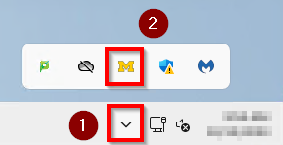
-
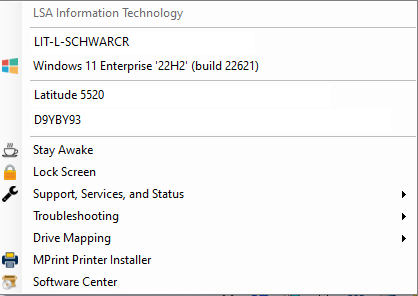
The name, serial & OS version should appear in a pop out box (e.g., D9YBY93,Windows 11 Enterprise 22H2, Windows 11 Enterprise 22H2).
iOS (iPad) Instructions
-
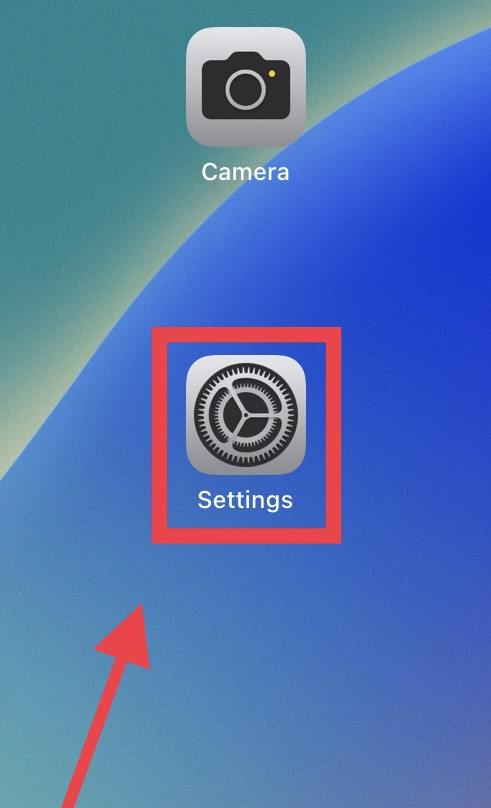
Tap on the Settings icon.
-
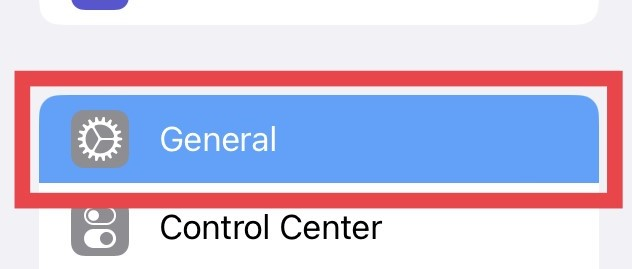
Go to the General settings tab.
-
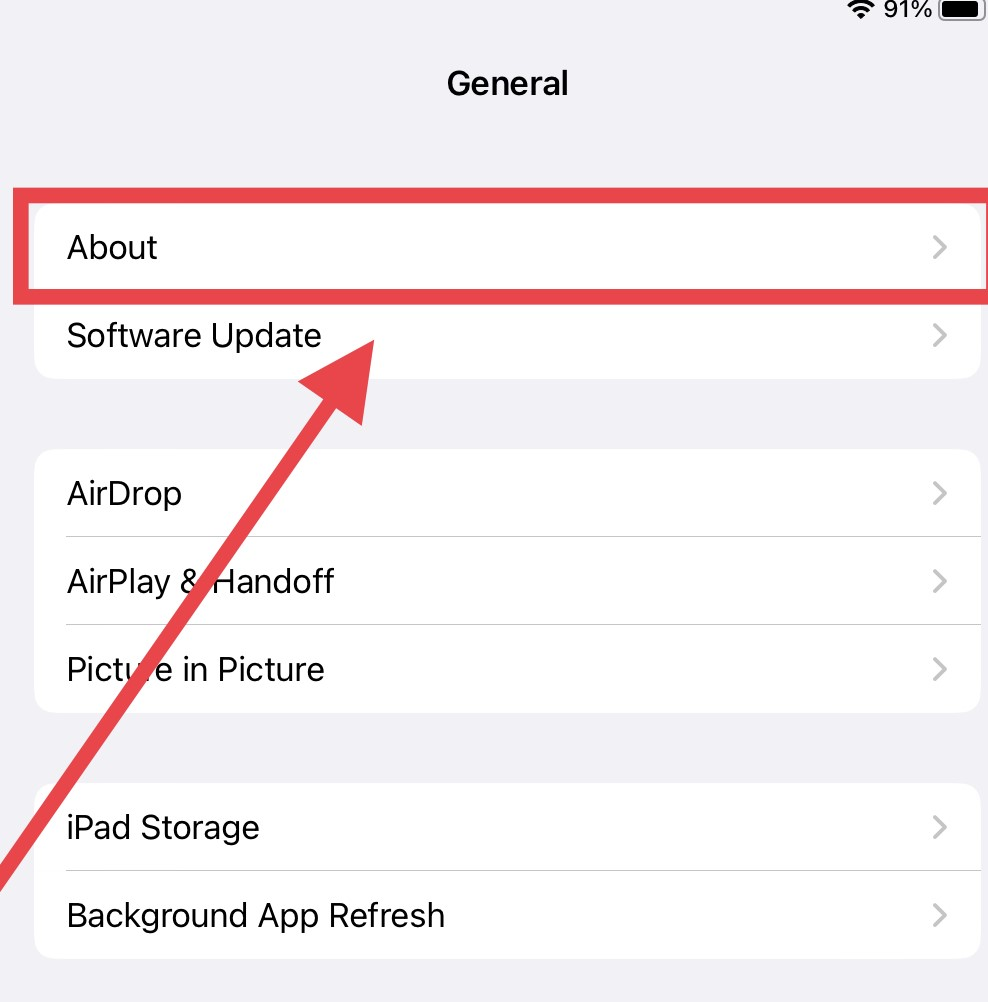
Tap on About on the top right.
-
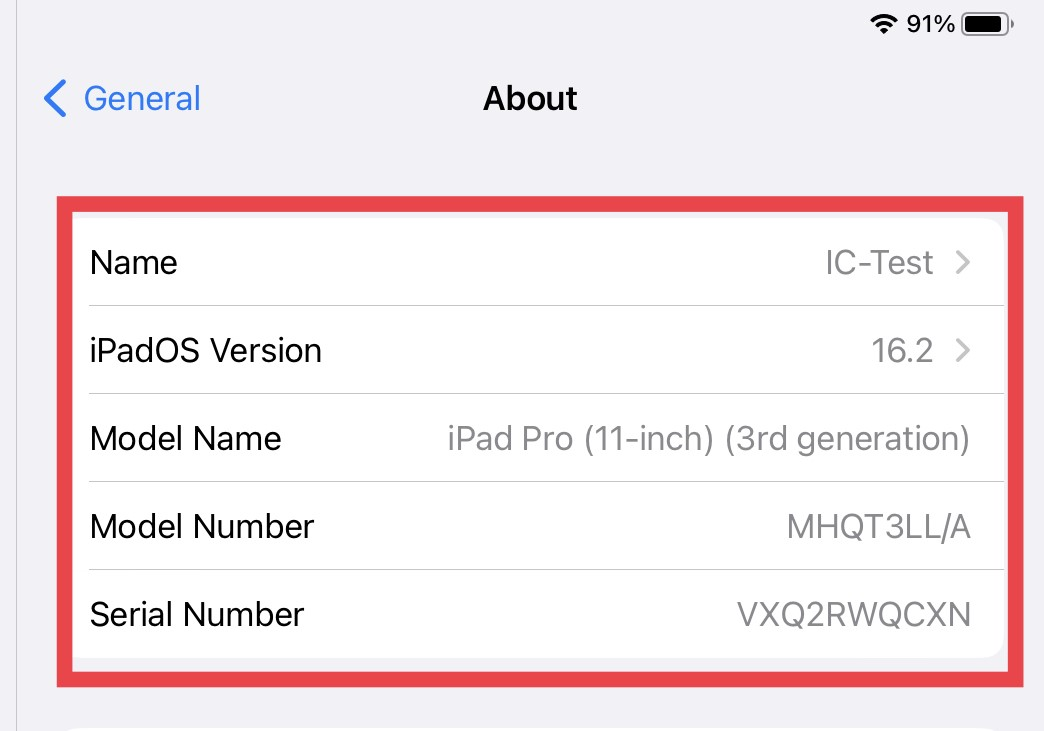
Name, OS version & serial should appear on the right side of the screen.
Finding the serial number for a monitor
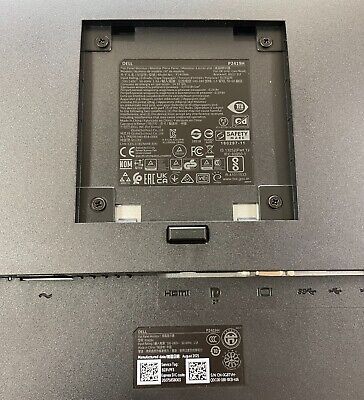
The serial number for a monitor (external screen), often abbreviated to S/N, is generally found on a sticker on the back of the device.
Sometimes this information can located behind the stand attachment as pictured here:
Finding a computer name for computers not on the LSA build
Windows OS
Option1: About Your PC
- Click on the Start menu.
- Type and click on About your PC.
- Your computer name is listed under Device name.
Option 2: Command Prompt
- Click on the Start menu.
- Type and click on Command Prompt.
- Type in:
hostname
MacOS
How to find your computer name on MacOS Monterey
- Click the Apple in the upper-left menu bar.
- Choose System Preferences.
- Click Sharing.
- The Computer Name is listed on top of the frame.
How to find your computer name on MacOS Ventura
- Click the Apple in the upper-left menu bar.
- Click System Settings...
- Click General.
- The name is listed under Name in the first row.
External resources