Body
Layout and directions
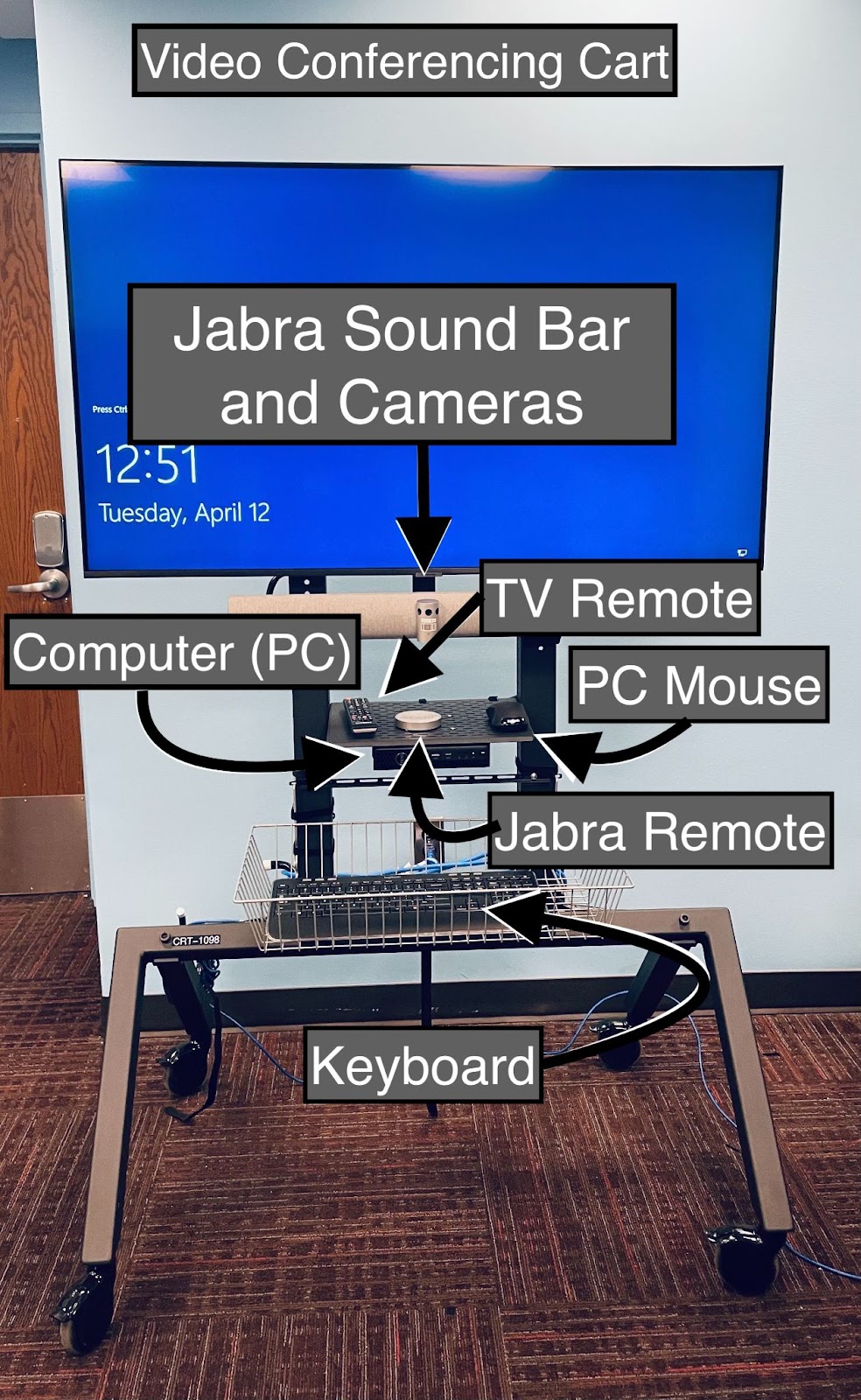
Use Samsung video monitor remote control to power on display
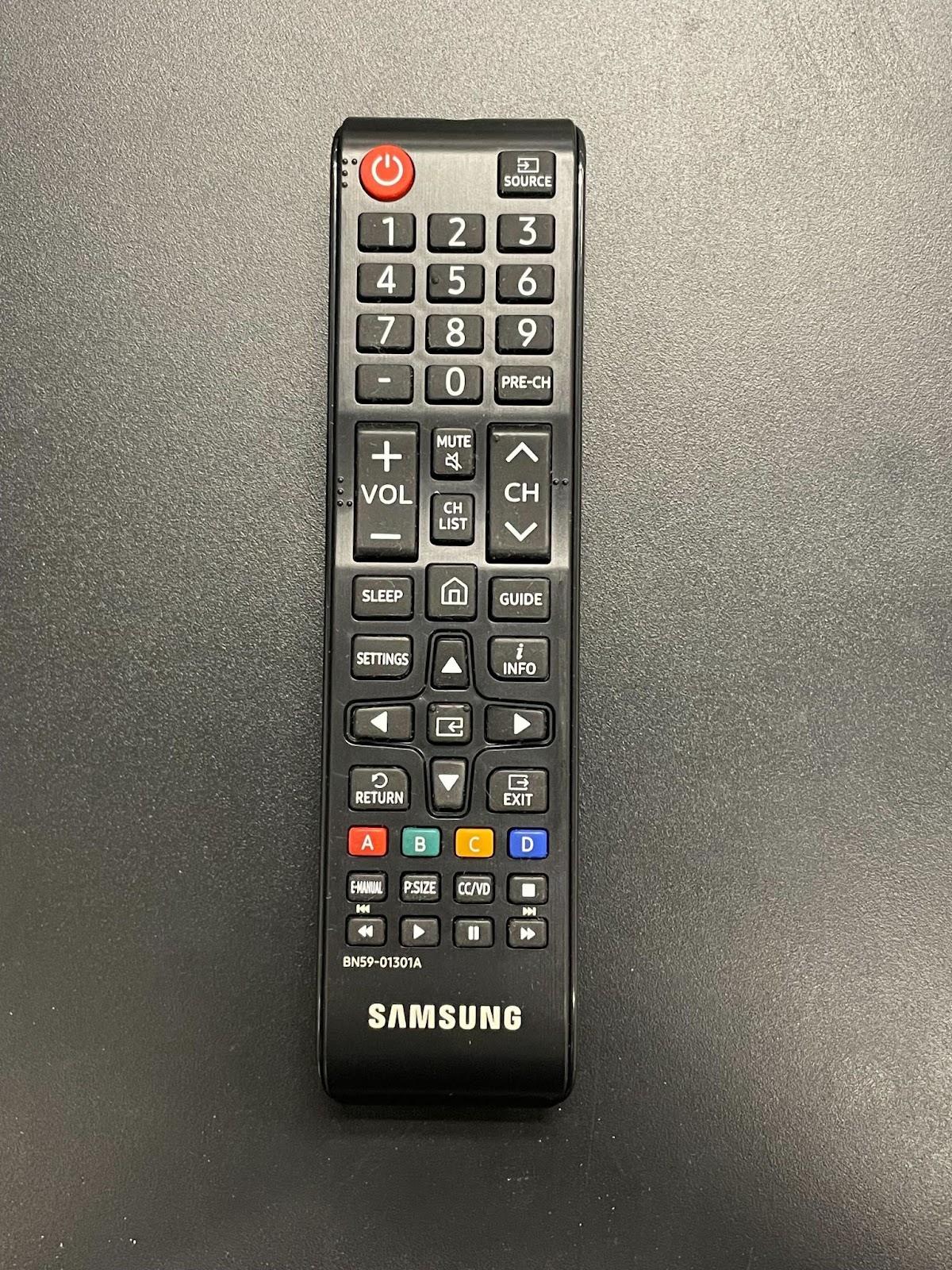
1. If needed, use remote control to select "PC" as source
2. Press the Home icon on the remote to select a source
3. Press ENTER or double click on the mouse to wake up the computer
4. Type CTRL ALT Delete to log in with Umich credentials
5. Launch the Zoom app and log in to your Zoom account
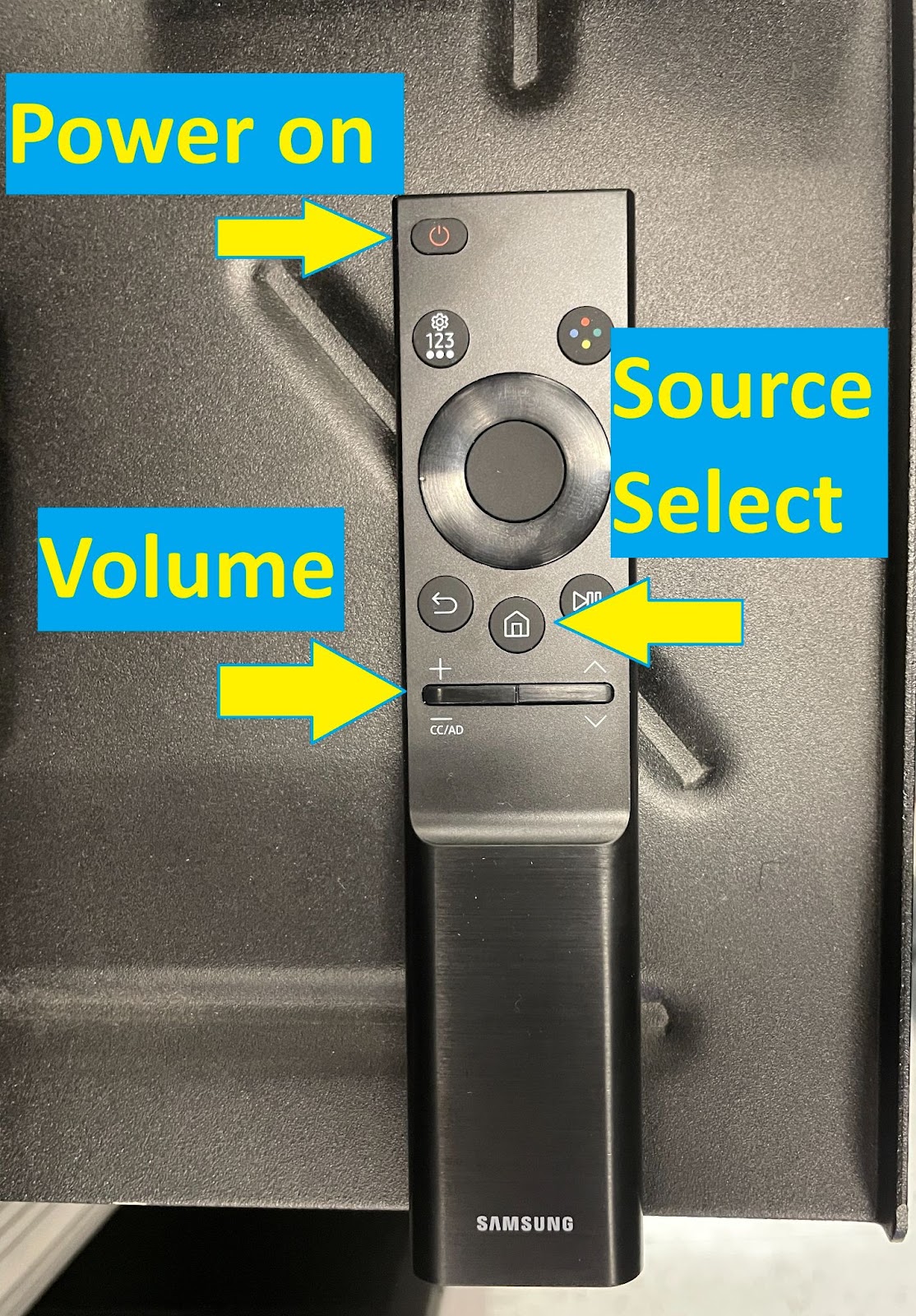
Some video conferencing carts come with a simplified remote control:
Wireless Presentation Instructions: Zoom Set Up
Zoom settings: select Speaker and Microphone in Zoom Meeting
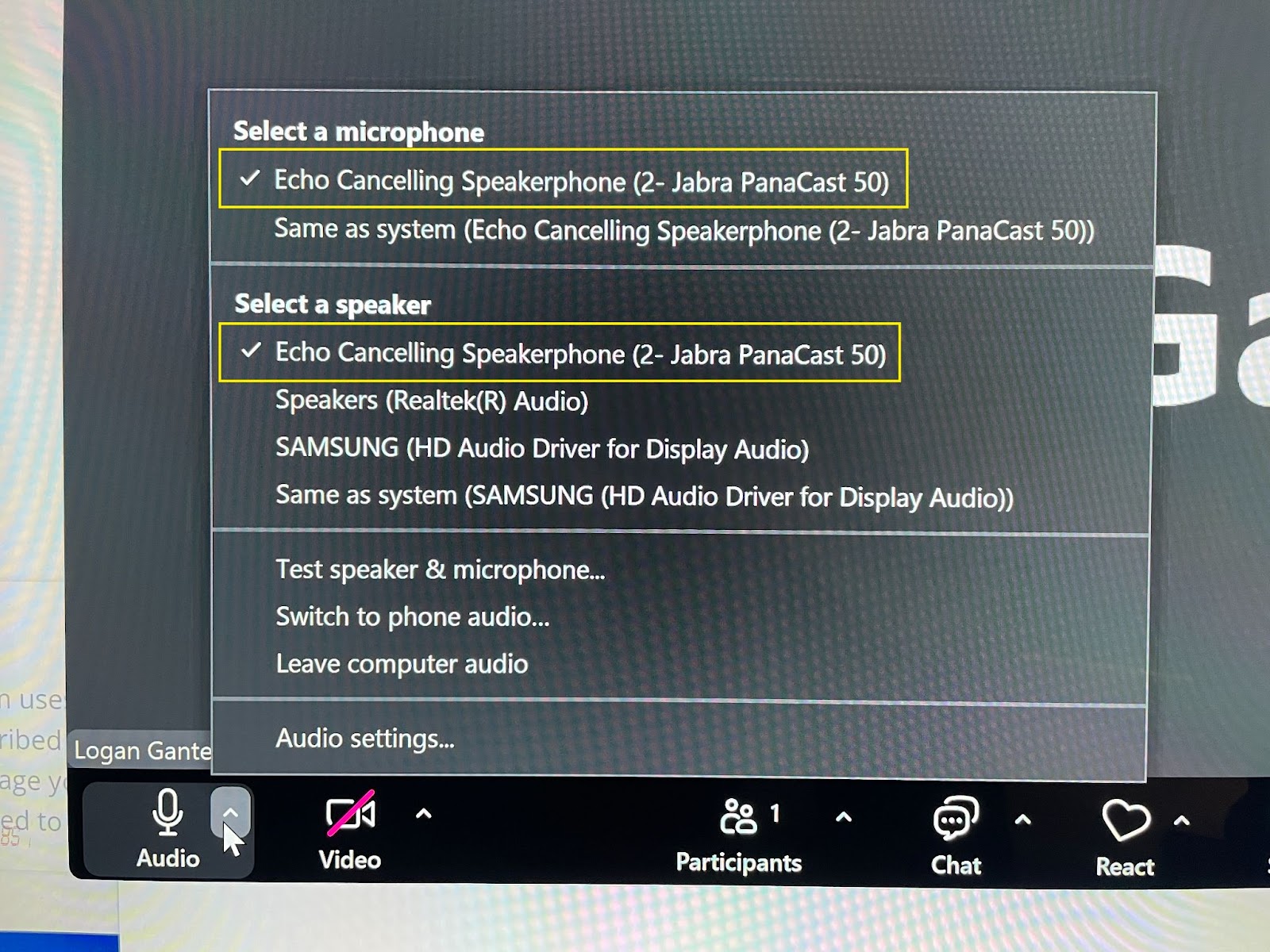
(Each selection will require clicking the "Up" arrow to open list)
1. Click "Up" arrow next to "Audio" icon in Zoom
2. Select Mic - Echo Canceling Speakerphone (Jabra Panacast 50)
3. Select Speaker - Echo Canmceling Spreakerphone (Jabra Panacast 50)
4. To ensure microphone and speaker are working correctly, select "Test Speaker and Microphone"
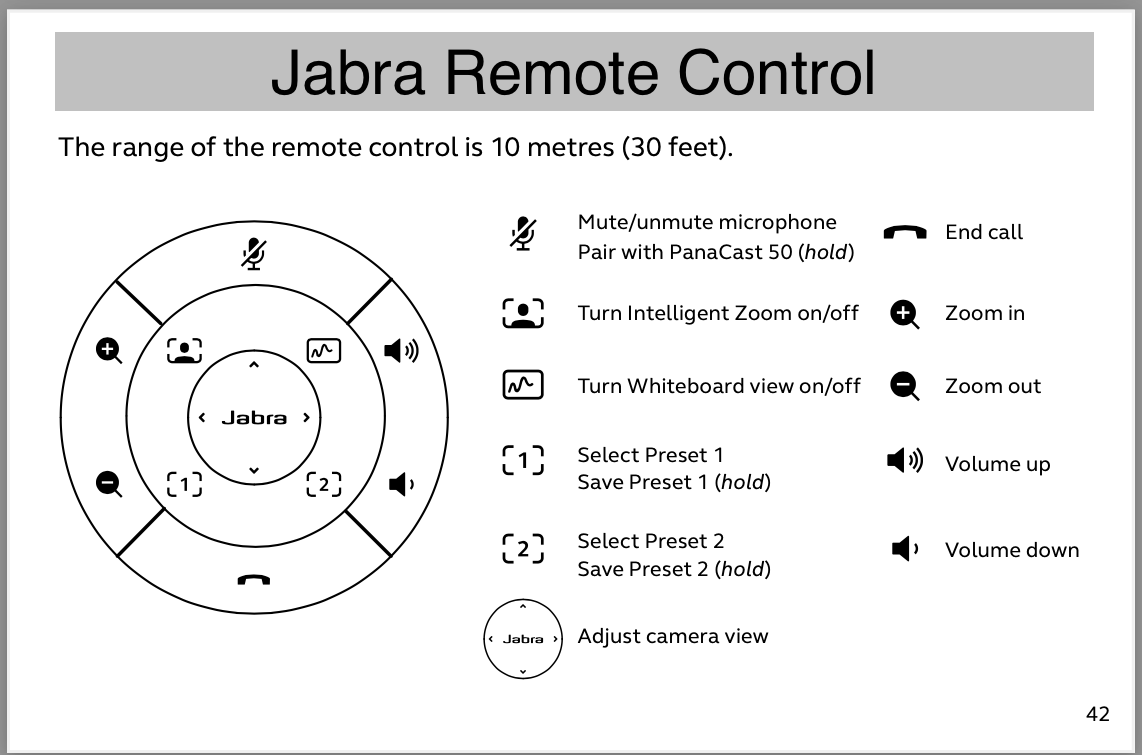
For Assistance Call 734-615-0100 [Prompt 1]