Body
The Wolfvision Document Camera
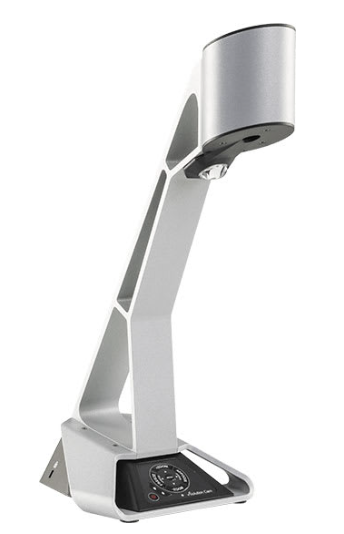
Useful for:
-
Projection
-
Light at podium for presenter's notes
-
Blanking projection screen
-
Troubleshooting tool for testing projection system
Operation
-
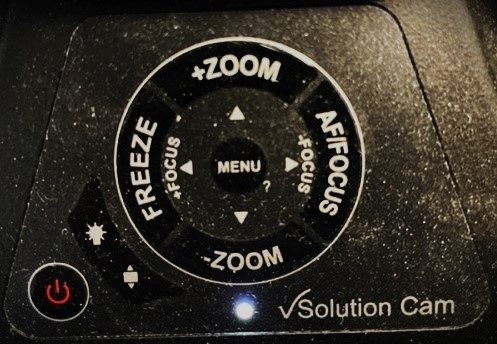
To turn on the document camera, press the red power button
-
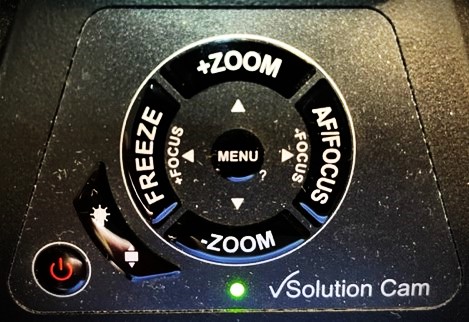
When camera light is on, indicator light next to the Solution Cam logo turns green
-
Document Camera will not project unless light is turned on
-
This makes it useful as an option for blanking the projection screen
-
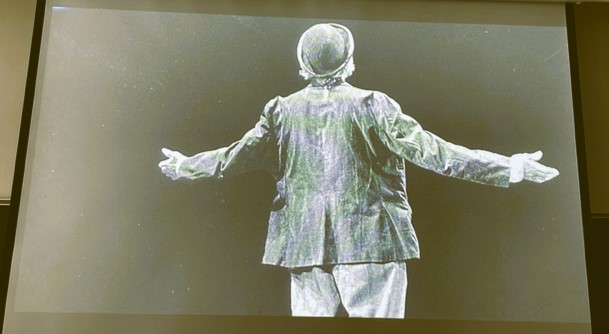
When light is on and Doc Cam source is chosen on podium's touch panel, camera will project whatever is placed beneath the lens

-
Lens Zoom controls enable close-up for detail
-
While the document camera's Autofocus works well enough for most purposes, you may also enable Manual Focus for greater detail control
-
This option can be useful when placing a three dimensional object under the lens
-
Pressing 'Freeze' takes a picture of what you have under the lens, and will continue to display the image after you have removed the original

For Assistance Call 734-615-0100 [Prompt 1]