Accessing Course Evaluation Results
Body
Overview
Watermark Course Evaluations & Surveys (CES) provides instructors with an easy way to access, review, and download the results of their end-of-semester surveys. You can pull detailed reports for individual course sections or generate batch reports to combine data from multiple courses at once.
View Individual Course Reports
Follow these steps to download the evaluation results for a single course section:
- Access Watermark CES by clicking the Course Evaluations link in the menu of any of your Canvas courses.
- Click on Results in the top navigation menu, then select Project Results.
 Click on the specific evaluation project (e.g., "Fall 2026 Course Evaluations") from the results list.
- Locate the course section you want to review. Click the Download Report icon located next to the course information.
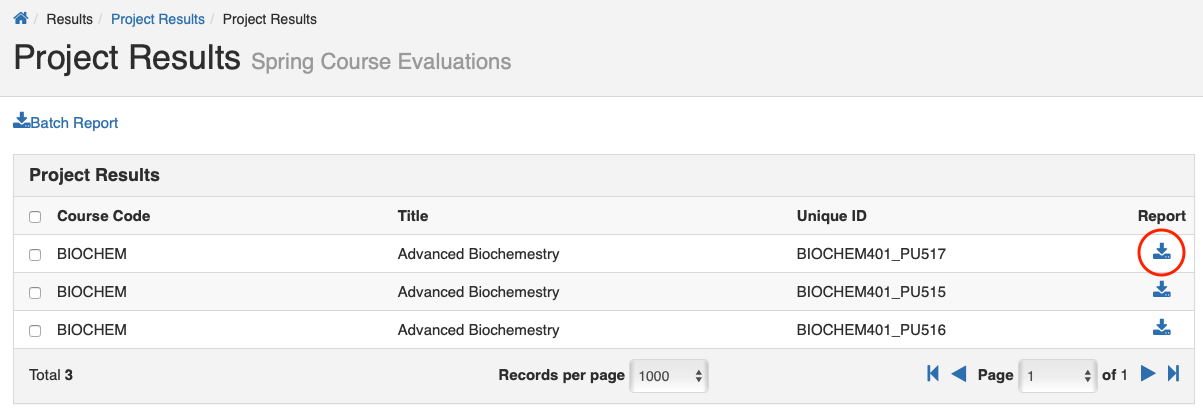
- Select your desired report format from the drop-down menu:
- Detailed Report: A comprehensive quantitative report in PDF format, excluding write-in comments.
- Detailed Report + Comments: A comprehensive quantitative report in PDF format that includes all student write-in comments.
- Short Report: A condensed quantitative report in PDF format, excluding write-in comments.
- Short Report + Comments: A condensed quantitative report in PDF format that includes all student write-in comments.
- Response Report: Each page of the PDF is each student's compiled responses to your questions.
- Raw Data: The raw survey data exported as an Excel spreadsheet.
Generate Batch Reports
If you want to download multiple results at once, or if you want to combine the data from multiple sections into a single aggregated report, you can use the Batch Report feature.
- On the Project Results page, check the boxes next to the multiple course sections you wish to include.
- Click the Batch Report button located at the top of the course list.
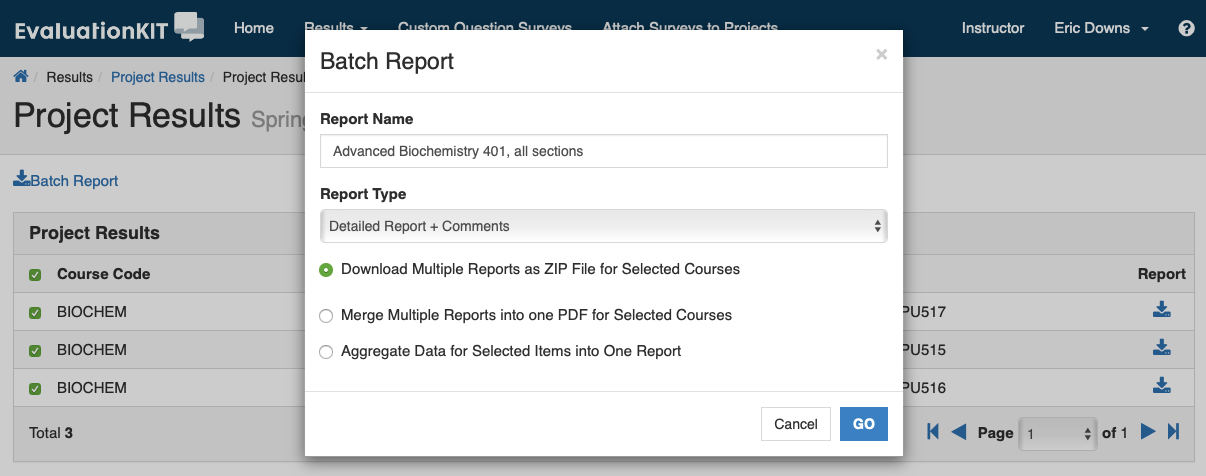
- Enter a Report Name in the provided text field (e.g., "PSY 101 Fall 2026").
- Select your desired Report Type (e.g., Detailed Report, Short Report + Comments).
- Select one of the following options:
- Download Multiple Reports as ZIP File: Course section reports will be downloaded as individual PDFs into a single ZIP file. Data is not aggregated.
- Merge Multiple Reports into One PDF: Course section reports will be saved as multiple pages in a single PDF. Data is not aggregated.
- Aggregate Data: Results for all selected course sections will be aggregated into one single PDF report. Useful when teaching multiple sections of the same course.
- Raw Data: If you select Raw Data as the Report Type, the raw data for the selected courses will be downloaded as individual Excel files inside a single ZIP folder.
Merging vs. Aggregating: Merging creates one PDF where Course A is on pages 1-3 and Course B is on pages 4-6. Aggregating creates one PDF where the data from Course A and Course B are combined into a single set of averages.
- Click GO to generate your batch report. The file will then be automatically emailed to you for download.
Details
Details
Article ID:
15442
Created
Mon 6/1/26 11:30 AM
Modified
Tue 7/28/26 8:54 AM